What this tool does
Enter a trim size, a bleed and a safe inset. It gives you the full artwork dimensions to supply and the safe area to keep text inside, in millimetres and inches.
People also used
Paper Sizes Calculator
Compare paper sizes and convert dimensions to pixels for accurate print design at any resolution.
DPI Calculator
Calculate DPI, print size, or required pixels for sharp, print-ready images.
Poster Size Planner
Pick the right poster size for any viewing distance and content density.
Feedback
Spotted something off with this tool?
Three sizes, not one
Any print job that runs colour to the edge has three rectangles, and confusing them is the commonest reason a job comes back wrong.
Trim is the finished size — what the customer holds. Bleed is trim plus an overhang on every side, which is the size of file you supply. Safe area is trim minus an inset, and nothing you mind losing should sit outside it.
Pick a preset (A4, A5, A6, US Letter, business card, postcard) or type a custom trim size, set your bleed and inset, and the calculator returns the other two rectangles both ways in millimetres and inches.
Why bleed exists at all
Because guillotines are not perfect and paper moves.
A commercial cutter is working through a stack, and a fraction of a millimetre of drift is normal. Supply artwork at exactly trim size and any drift outwards leaves a thin white sliver along one edge — on a dark design, unmistakable. Extend the background 3 mm past the trim line and the blade has somewhere to be wrong.
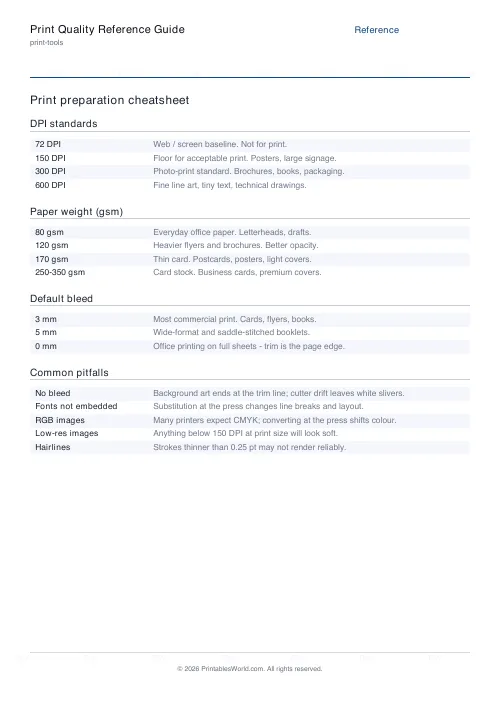
Three millimetres is the standard almost everywhere. Some printers want 5 mm for large formats or for perfect-bound covers. Ask, because supplying too little is a reprint and supplying too much is nothing.
The safe inset
The same drift that eats into your background can eat into your text.
Keep type, logos, page numbers and anything else that must survive at least 5 mm inside the trim line. Bump that to 8 or 10 mm on saddle-stitched or perfect-bound work, where the fold and the spine take more room than you expect, and where the inner margin needs more than the outer one to look even once the book is open.
Supplying the file
Export with bleed included and with crop marks on, so the printer can see where trim is meant to fall. Flatten transparency if asked. Convert to CMYK if asked, because the vivid screen blue that arrives as RGB will come back duller and the surprise is always unwelcome.
And check the number against that particular printer's spec sheet before sending. Every shop has one, they do not all agree, and the one that matters is theirs.
Related
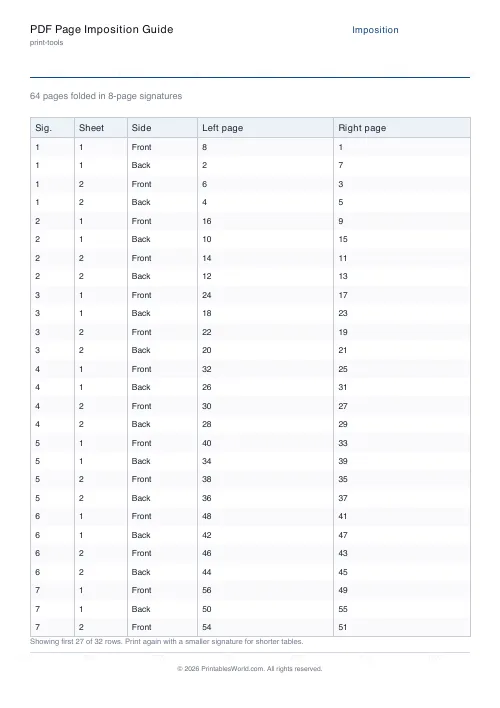
Working out a booklet's sheet order? Use the imposition planner. Checking whether a photograph is sharp enough for the size? Resolution checker.
FAQs
Quick answers
What is bleed in print?
Bleed is extra artwork that extends past the trim edge, usually 3 mm, so the cutter can trim through colour without leaving a white sliver if it drifts.
How much bleed should I add?
Most commercial printers ask for 3 mm of bleed on every side. Wide-format and saddle-stitched booklets sometimes ask for 5 mm. Check your printer’s spec sheet first.
What is the safe zone?
The safe zone is an inset from the trim edge where text and important artwork should live so they are not clipped during cutting. A 3–5 mm safe inset is standard.
Do I always need a margin?
For body text, yes. Keep at least 5 mm between text and the trim. Background colour and photography can extend into the bleed area.
Related tools
Paper Sizes Calculator
Compare paper sizes and convert dimensions to pixels for accurate print design at any resolution.
DPI Calculator
Calculate DPI, print size, or required pixels for sharp, print-ready images.
Poster Size Planner
Pick the right poster size for any viewing distance and content density.
Print Size to Megapixels Calculator
Work out the megapixels needed for any print size.
Further reading