What this tool does
Converts between pixel dimensions, DPI and physical print size. Three modes. Give it a pixel count and a target resolution and it returns the largest you can print; give it a finished size and a resolution and it returns the pixels you need; give it both and it reports the effective DPI with a quality band beside the number, so you know whether 296 is a problem before you find out from the printer. Inches or centimetres, updating as you type.
People also used
Paper Sizes Calculator
Compare paper sizes and convert dimensions to pixels for accurate print design at any resolution.
Graph Paper Generator
Create custom graph paper PDFs with square or rectangular grids, dot styles, and axis numbering.
Aspect Ratio Calculator
Calculate and resize by aspect ratio for any image.
Feedback
Spotted something off with this tool?
Three questions, one calculator
How big can I print this? A 3000 × 2000 image at 300 DPI comes out at 10 × 6.67 inches. That is the ceiling, and going past it means the printer is inventing pixels.
How many pixels do I need? A 24 × 36 inch poster at 150 DPI wants 3600 × 5400 pixels. Now you know whether the shot you have is usable before you promise anything.
What am I actually getting? A 4000 × 3000 photo into an 8 × 10 inch frame gives 500 DPI across the short side and 300 down the long one, which is comfortably past the threshold and tells you the crop is the only real decision left.
Inches or centimetres. The result recalculates as you type, and it names a quality band with the number so you do not have to remember where the thresholds sit: 300 and above is very high, 240 is high, 150 is moderate, and anything below that is low.
Why the number matters before you export, not after
A lab printing a 4 × 6 at 300 DPI wants 1200 × 1800 pixels exactly. Hand it 800 × 600 and one of two things happens: it rejects the file, or it upscales quietly and returns something soft with visible edges that you will notice and the client will notice.
The second outcome is worse, because nobody told you. Checking the arithmetic before export costs ten seconds and saves a reprint.
Viewing distance changes the answer
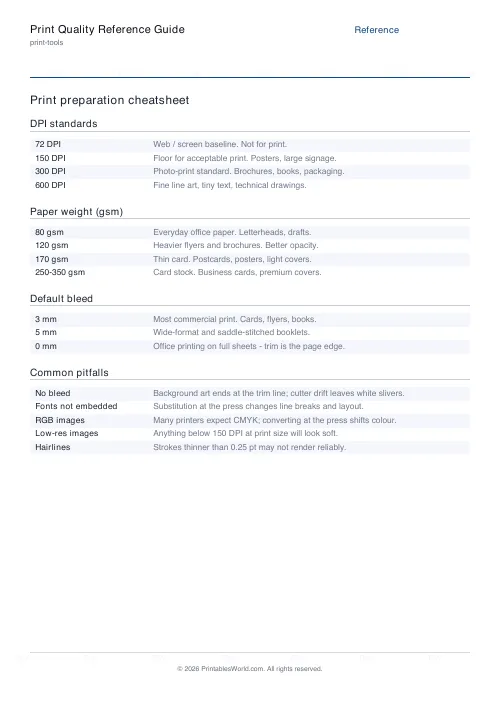
300 DPI is the photographic standard because that is roughly the limit of what an eye resolves at arm's length. It is also, for a banner, an enormous waste.
A poster read from two metres is fine at 150 to 200. A trade-show banner seen from ten feet holds up at 60 to 100, and insisting on 300 there produces a file too big to handle for no visible gain. The right question is never what resolution is best, it is how far away the thing will be when someone looks at it.
DPI, PPI, and why nobody keeps them straight
Strictly, DPI is dots of ink the printer lays down per inch, and PPI is image pixels mapped to each inch of print. They describe different machines.
In practice designers and print shops say DPI for both, and when you export a JPEG at 300 DPI you are writing intended-print-resolution metadata rather than changing a single pixel. This calculator uses the everyday sense, because that is the sense your printer will use when they email you back.
A product shot into an A4 brochure
The photo is 4608 × 3456, sixteen megapixels. The designer wants it filling a full A4 page, which is 210 × 297 mm, or 8.27 × 11.69 inches.
Effective DPI mode, all four numbers in. It comes back with 557 across and 296 down. The vertical figure is essentially at the 300 standard and the horizontal is miles past it, which means resolution is not the problem here. The aspect ratio is: the image is 4:3 and A4 is not, so something has to be cropped or margined. Keep the 3456-pixel height, trim the width, and the sharpness survives the decision.
Standard sizes, worked out
US Letter is 8.5 × 11 inches, so a full-bleed page at 300 DPI needs 2550 × 3300 pixels. A4 is 8.27 × 11.69 inches and needs 2481 × 3507 at the same resolution.
Worth knowing by heart if you export for print often, and worth checking here if you do not.
What it does not do
- It is arithmetic, and nothing else. There is no PDF, no export and no image processing: it tells you the number, and resizing the file is a job for your editor.
- Square pixels and uniform resolution are assumed. Anamorphic and non-square-pixel video need adjusting by hand.
- No allowance is made for bleed, for trim, or for safe zones. Add 3 to 6 mm of bleed to whatever number it gives you before sending anything to a commercial printer.
- Effective DPI assumes the whole image prints at the size you entered. Crop it and the number changes.
FAQs
Quick answers
What DPI should I use for printing photos?
Use 300 DPI for standard photographic prints viewed at arm's length. Anything from wallet size to 16 × 20 inches. This resolution preserves fine detail and smooth gradients. For larger posters or canvas prints viewed from a few feet away, 150–200 DPI is acceptable and reduces file size. Large banners and trade-show graphics often print at 60–100 DPI because viewing distance compensates for lower pixel density.
How do I calculate the pixel dimensions I need for a specific print size?
Switch the calculator to 'Find Required Pixels' mode. Enter your target print width and height in inches or centimetres, then specify your desired DPI (typically 300 for photos). The tool multiplies dimensions by DPI to show the exact pixel width and height you need to export from your image editor or camera.
Can I use this calculator for A4 and US Letter prints?
Yes. The calculator accepts dimensions in both inches and centimetres. US Letter is 8.5 × 11 inches; A4 is 210 × 297 mm (8.27 × 11.69 inches). Enter your paper size, specify 300 DPI, and the tool returns the pixel dimensions needed to fill the page without upscaling.
What's the difference between DPI and PPI?
PPI (pixels per inch) describes digital image resolution. The number of image pixels per inch of intended print size. DPI (dots per inch) technically refers to printer output. The number of ink dots per inch. In practice, designers and print vendors use 'DPI' for both. When you set an image to '300 DPI' in export settings, you're defining its print resolution in pixels per inch.
Why does my image look pixelated even at 300 DPI?
If your source image doesn't have enough pixels, setting the export DPI to 300 won't add detail. It will only scale the image smaller or force the printer to interpolate. Use the calculator's 'Find Required Pixels' mode to check whether your camera or scan resolution meets your print-size goal. A 1200 × 1800 pixel image prints beautifully at 4 × 6 inches and 300 DPI, but stretching it to 8 × 10 inches drops effective DPI below 200, causing visible softness.
How many megapixels do I need for large prints?
Multiply your print dimensions by your target DPI, then calculate total pixels. An 11 × 14 inch print at 300 DPI needs 3300 × 4200 pixels, or 13.9 megapixels. A 24 × 36 inch poster at 150 DPI requires 3600 × 5400 pixels, 19.4 megapixels. Use the calculator to find exact requirements for your project, then compare against your camera or scan resolution.
Does the calculator resize my images?
No. The calculator performs only the mathematical conversion between pixels, DPI, and print size. It shows you what resolution you need or what size you can print, but it does not edit, crop, or resample image files. You'll need photo-editing software to export images at the calculated pixel dimensions.
Related tools
Paper Sizes Calculator
Compare paper sizes and convert dimensions to pixels for accurate print design at any resolution.
Graph Paper Generator
Create custom graph paper PDFs with square or rectangular grids, dot styles, and axis numbering.
Aspect Ratio Calculator
Calculate and resize by aspect ratio for any image.
N-Up Printing Calculator
Fit multiple pages or images onto one sheet.
Further reading