What this tool does
Enter an image's pixel dimensions and the size you want to print it. It returns the effective DPI and says whether that is good enough.
People also used
DPI Calculator
Calculate DPI, print size, or required pixels for sharp, print-ready images.
Print Quality Reference Guide
A printable reference for DPI standards, paper weights, bleed defaults, and common pitfalls.
Paper Sizes Calculator
Compare paper sizes and convert dimensions to pixels for accurate print design at any resolution.
Feedback
Spotted something off with this tool?
Pixels in, verdict out
Give it the image's width and height in pixels, then the size you intend to print at — inches, centimetres, millimetres, whichever you think in. It divides one by the other and reports the DPI you will actually get.
The verdict comes back banded. Three hundred and above is very high, 240 is high, 150 is moderate, and anything below that is low — which is the tool's polite way of telling you the print will look pixelated.
Where the numbers come from
Three hundred dots per inch is the traditional commercial print standard, chosen because it is around the limit of what an unaided eye resolves at reading distance. It is not magic and it is not always necessary.
Two hundred and forty is fine for most photographic printing, and plenty of people cannot tell the two apart on paper. One-fifty passes for something looked at from a metre away. Below that the pixels start to show. No amount of sharpening puts back detail that was never captured in the first place.
Distance changes everything
The bands above assume you are holding the print.
A billboard is printed at 15 DPI and looks perfectly sharp from across a road. A poster read from three metres is comfortable at 100. An A2 print on a wall is fine at 150. Only prints you actually hold — photographs, cards, book pages — really need 300, and the calculator has to assume that case because it does not know where the print is going.
So treat a "moderate" verdict on something large as probably fine, and a "moderate" on a postcard as a real problem.
Why upscaling is not the answer
Enlarging a 1000-pixel image to 3000 pixels in an editor does not add detail. The software interpolates — it invents intermediate pixels by averaging — and the result is a bigger, blurrier version of the same information. The DPI number improves and the print does not.
Machine-learning upscalers hallucinate plausible detail instead of averaging, which often looks better and is still invention. Fine for a background. Risky on a face or a logo.
The real fix is a bigger original. Reshoot it, rescan it higher, or ask the client for the file they made it from.
A note on the term
An image file has no DPI of its own. It has a pixel count, and DPI only exists once you decide how large to print it — which is exactly why this calculator needs both numbers. Any DPI value stored in the file's metadata is a suggestion that most software ignores.
See also the DPI calculator, which works the same relationship in the other direction, and the poster size planner if you are sizing something for a wall.
FAQs
Quick answers
What DPI counts as “sharp”?
300 DPI is the gold standard for photo prints viewed at arm’s length. 240 DPI looks high quality, 150 DPI is moderate, and below 150 starts to look soft up close.
How is the verdict calculated?
Effective DPI is the smaller of (pixel width / print width in inches) and (pixel height / print height in inches). The verdict bands are 300+ very high, 240+ high, 150+ moderate, anything else low.
Can I upscale a low-resolution image?
You can resample an image larger but it will not invent detail. It will look soft. AI super-resolution helps but works best on photos, not text or line art. Reshoot or replace the source if possible.
Does viewing distance matter?
Yes. Billboards print at 30 DPI and look fine from across the street. The 300 DPI rule applies to prints held in hand. For posters, 150 DPI is usually plenty.
Related tools
DPI Calculator
Calculate DPI, print size, or required pixels for sharp, print-ready images.
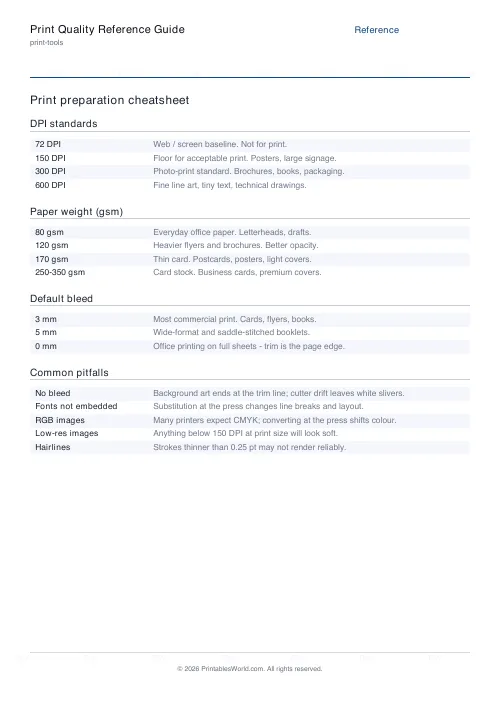
Print Quality Reference Guide
A printable reference for DPI standards, paper weights, bleed defaults, and common pitfalls.
Paper Sizes Calculator
Compare paper sizes and convert dimensions to pixels for accurate print design at any resolution.
Further reading